AetherSX2 Best Settings for Android 2026
AetherSX2 installs with safe default settings, but those defaults are made to work on every phone — not to run well on yours. On a low-end phone the defaults cause lag and slow motion, and on a flagship phone they leave most of your performance unused. The right settings can be the difference between an unplayable 20 FPS and a smooth, full-speed game.
This guide gives you the exact best AetherSX2 settings for Android in 2026, split into three device tiers — low-end, mid-range, and high-end — so you can copy the preset that matches your phone, then fine-tune per game. These settings apply to the final AetherSX2 build (v1.5-4248) and also work on the popular v1.5-3668 build, since the settings menus are the same.
If your emulator is not set up yet, first follow the download and setup steps on our AetherSX2 APK page and import your BIOS using our AetherSX2 BIOS guide. Then come back here and apply the settings below.
Best AetherSX2 Settings at a Glance
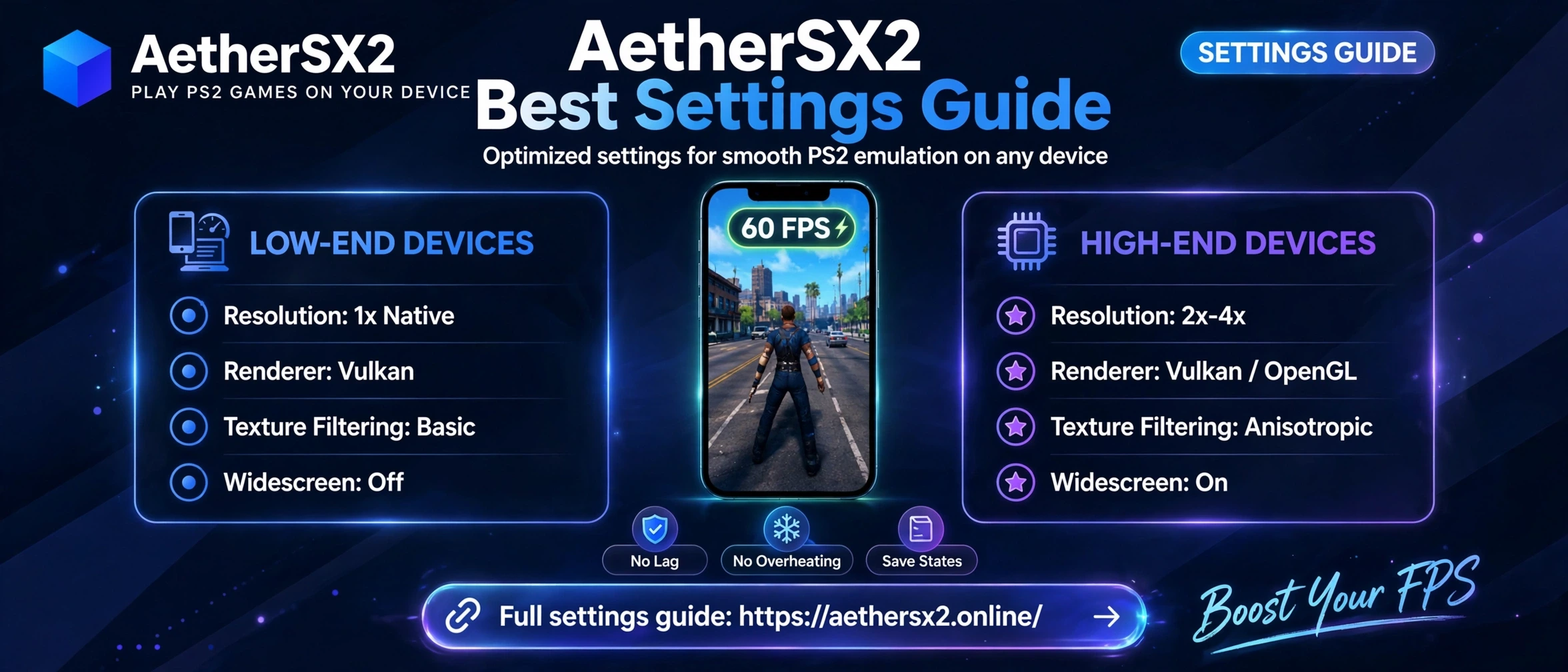
Short on time? Copy the column that matches your phone. Every setting is explained in detail further down the page.
| Setting | Low-End Phones | Mid-Range Phones | High-End Phones |
|---|---|---|---|
| Graphics Renderer | Vulkan | Vulkan | Vulkan |
| Rendering Resolution | 1x (Native) | 2x | 3x – 4x |
| EE Cycle Rate | -1 (Underclock) | 0 (Default) | 0 (Default) |
| EE Cycle Skip | 1 | 0 | 0 |
| MTVU | On | On | On |
| Instant VU1 | On | On | On |
| Blending Accuracy | Basic | Basic | High |
| Texture Filtering | Bilinear (PS2) | Bilinear (Forced) | Bilinear (Forced) |
| Anisotropic Filtering | Off | 4x | 8x – 16x |
| Mipmapping | Basic | Full | Full |
| Hardware Download Mode | Accurate | Accurate | Accurate |
| Widescreen Patches | Off | On (per game) | On (per game) |
| Audio Latency | 100 ms + Async Mix | 60 ms | 40 ms |
| Frame Limiter | On (100%) | On (100%) | On (100%) |
Device tiers explained: Low-end = Snapdragon 6xx series, Helio G-series, 4–6 GB RAM. Mid-range = Snapdragon 778G / 870, Dimensity 1200-class, 6–8 GB RAM. High-end = Snapdragon 8 Gen 1 or newer, Dimensity 9000-class, 8 GB+ RAM.
Before You Change Anything
Three things to know before you start tweaking:
- There is no single “best” setting for every game. PS2 games stress the emulator in different ways. Use this guide as your global preset, then adjust per game only if that game misbehaves. AetherSX2 saves settings per game automatically when you change them from the in-game settings menu (the pause menu), which is the safe way to experiment.
- Change one setting at a time. If a game suddenly looks wrong or crashes, you will know exactly which setting caused it — undo it and move on.
- Keep the frame limiter on. Turning it off makes games run faster than real time, drains the battery, and overheats the phone. It does not fix lag.
System Settings (Emulation)
You will find these under Settings → System (App Settings) or in the in-game settings menu.
EE Cycle Rate (Underclocking)
This controls the speed of the emulated PS2 CPU. Lowering it (underclocking) makes emulation easier for weak phones, at the cost of in-game slowdowns in demanding scenes.
- Low-end: set to -1. This single change fixes slow motion in many games. Use -2 only for very heavy games like Shadow of the Colossus.
- Mid-range / high-end: leave at 0. Underclocking a phone that does not need it causes stutter in games that push the real PS2 CPU.
EE Cycle Skip (Maximum Framerate)
This skips emulated CPU cycles to gain speed. It helps weak devices but causes choppy animation and audio problems if pushed too far.
- Low-end: 1 is the safe value. Avoid 2 or 3 — games become a slideshow.
- Mid-range / high-end: 0 (None).
MTVU (Multi-Threaded VU1)
On for all devices. MTVU runs one of the PS2’s vector units on a separate CPU core. Almost every modern phone has multiple cores, so this is free performance with no downside for most games.
Instant VU1
On for all devices. It reduces latency in how the emulator handles VU1 work and improves frame pacing. If one specific game freezes or glitches with it on, disable it for that game only.
Fast Memory (Fastmem)
On. It speeds up memory access in the emulator. It is stable on current Android versions and gives a small but real boost, especially on low-end and mid-range phones.
Frame Limiting and Game Speed
- Enable Frame Limiter: On, Normal Speed 100%. This locks games to their original speed (60 FPS for NTSC, 50 FPS for PAL).
- Leave Turbo and Slow-Motion speeds at their defaults; map them to an on-screen button only if you actually use fast-forward.
Graphics Settings
This is where most of your performance and visual quality comes from. Find these under Settings → Graphics.
Renderer: Vulkan vs OpenGL
Vulkan is the best choice for almost everyone. It is faster on modern Adreno and Mali GPUs and is the renderer AetherSX2 is optimised for. Switch to OpenGL only if a specific game shows broken graphics on Vulkan (a few titles render effects incorrectly) — change it per game, not globally. The Software renderer is a last resort for troubleshooting: it is accurate but far too slow for normal play on most phones.
Rendering Resolution (Upscaling)
Resolution is the single biggest performance lever you have.
- 1x (Native) — original PS2 resolution. Low-end phones should stay here; games still look fine on a phone screen.
- 2x — roughly 720p-class sharpness. The sweet spot for mid-range phones.
- 3x – 4x — 1080p and above. Only for flagship phones, and only in games that are not already struggling at 2x.
- 5x and above — almost never worth it on a phone screen; the visual gain is tiny and the heat and battery cost is large.
Rule of thumb: if a game drops below full speed, lower the resolution one step before touching anything else.
Blending Accuracy
Controls how accurately transparency and lighting effects are blended.
- Basic — fastest, correct for the majority of games. Low-end and mid-range default.
- High — fixes wrong-looking lighting, fog, and glow effects in some games (for example the harsh sun glare in GTA San Andreas). High-end phones can leave this on High permanently; weaker phones should raise it per game only when effects look broken.
Texture Filtering and Anisotropic Filtering
- Texture Filtering: Bilinear (Forced) for mid-range and high-end; Bilinear (PS2) on low-end for a small saving.
- Anisotropic Filtering: Off on low-end, 4x mid-range, 8x–16x on high-end. It sharpens textures viewed at an angle (roads in racing games benefit most) and costs little on strong GPUs.
Mipmapping and Texture Preloading
- Mipmapping: Full on mid-range and high-end, Basic on low-end. Wrong mipmapping settings cause shimmering or blurry distant textures in some games; if a game’s textures look broken, this is one of the first settings to test.
- Preload Textures: Full (Hash Cache) if your phone has storage to spare — it reduces stutter when new areas load. On low-end phones with little free space, leave it at Partial.
Hardware Download Mode
Leave on Accurate. This controls how the emulator reads back data from the emulated GPU. “Disable” can give a big speed boost in a handful of games but breaks effects, minimaps, and photo modes in many others. Only experiment per game, and only if that game is too slow at 1x with underclocking already applied.
Deinterlacing and Anti-Blur
- Deinterlacing: Automatic. Most PS2 games are interlaced; Auto picks the right method per game. If one game looks shaky or comb-toothed, try Blend for that game.
- Anti-Blur: On. It removes the soft blur many PS2 games apply. Turn it off per game if text or menus look unnaturally sharp or shimmer.
Widescreen Patches
AetherSX2 can patch many games to render in true 16:9 instead of stretched 4:3.
- Enable per game (in the game’s settings → Game Fixes / patches), not globally — a small number of games glitch with the patch.
- On low-end phones, leave patches off: rendering a wider view costs performance.
Audio Settings
Audio problems in AetherSX2 are usually latency problems, not speaker problems. Find these under Settings → Audio.
- Synchronisation Mode: Async Mix on low-end and mid-range phones. It stops the audio from forcing the whole emulator to slow down when a frame is late — this is the main fix for crackling and stuttering sound.
- Latency: 100 ms on low-end, 60 ms mid-range, 40 ms high-end. If you hear crackles or pops, raise the latency in 20 ms steps until they stop. Lower latency feels more responsive but crackles sooner on weak hardware.
- Time Stretch (inside Async/Timestretch options): keep on — it smooths audio when the game speed dips briefly instead of cutting out.
Display Settings
- Aspect Ratio: Fit to Window / 16:9 if you use widescreen patches, otherwise 4:3. Never use “Stretch” — it distorts the image.
- VSync: On for high-end phones (prevents screen tearing). On low-end phones, turning VSync off can recover a few FPS in games that hover just below full speed.
- On-screen controls: if you play with touch controls, reduce the button opacity so they do not cover the game, and enable the right-stick deadzone defaults — a physical controller is always the better option for action games.
The Three Presets, Written Out
If you prefer to go menu by menu, here is each tier as a complete preset.
Low-End Preset (Snapdragon 6xx, Helio G-series, 4–6 GB RAM)
Renderer Vulkan · Resolution 1x · EE Cycle Rate -1 · Cycle Skip 1 · MTVU On · Instant VU1 On · Fastmem On · Blending Basic · Texture Filtering Bilinear (PS2) · Anisotropic Off · Mipmapping Basic · Widescreen Patches Off · Audio 100 ms Async Mix · VSync Off. Expect full speed in most 2D and light 3D games; heavy 3D titles may need the per-game tweaks below.
Mid-Range Preset (Snapdragon 778G/870, Dimensity 1200-class, 6–8 GB RAM)
Renderer Vulkan · Resolution 2x · EE Cycle Rate 0 · Cycle Skip 0 · MTVU On · Instant VU1 On · Fastmem On · Blending Basic (High per game) · Texture Filtering Bilinear (Forced) · Anisotropic 4x · Mipmapping Full · Widescreen Patches On per game · Audio 60 ms · VSync On. This is the best balance for most players — the large majority of the PS2 library runs at full speed here.
High-End Preset (Snapdragon 8 Gen 1+, Dimensity 9000-class, 8 GB+ RAM)
Renderer Vulkan · Resolution 3x–4x · EE Cycle Rate 0 · Cycle Skip 0 · MTVU On · Instant VU1 On · Fastmem On · Blending High · Texture Filtering Bilinear (Forced) · Anisotropic 16x · Mipmapping Full · Preload Textures Full · Widescreen Patches On per game · Audio 40 ms · VSync On. Push resolution to 4x game by game; even flagships should drop to 3x or 2x for the heaviest titles below.
Per-Game Settings for Popular Games
Apply these on top of your tier preset, per game (open the game → pause menu → Settings, so they save for that game only).
- God of War II — the most common complaint is a “ghost” double image. Fix it in the game’s Graphics → Hardware Fixes: Half Pixel Offset = Special (Textures). Vulkan, 2x is comfortable on mid-range; keep Blending on Basic unless the sun shafts look wrong.
- GTA San Andreas — raise Blending Accuracy to High for this game to fix the over-bright sun and lighting. 2x resolution on mid-range, 3x on high-end. If the minimap flickers, set Hardware Download Mode back to Accurate for this title.
- Gran Turismo 4 — one of the heaviest PS2 games. Mid-range phones: 1x–2x, EE Cycle Rate -1. The licence-test replays and some menus are the usual slow points; this is normal for GT4, not your phone’s fault.
- Shadow of the Colossus — the hardest common game to emulate. Use EE Cycle Rate -1 or -2, resolution 1x (2x only on flagships), Cycle Skip 1 on low-end. Even then, open areas may dip — on the real PS2 this game also ran below 30 FPS.
- Tekken 5 — light and well-behaved. Runs full speed at 3x–4x even on mid-range phones. If the picture vibrates, set Deinterlacing to Blend for this game.
- Dragon Ball Z: Budokai Tenkaichi 3 — runs well at 2x–3x on mid-range. Enable widescreen patch for this one; it supports it cleanly.
Full best-settings guides for each of these games — with screenshots — are coming in this series.
5 Common Problems and Their Fixes
| Problem | Most likely cause | Fix |
|---|---|---|
| Black screen when a game starts | Wrong renderer for that game, or a broken widescreen patch | Switch Renderer Vulkan ↔ OpenGL for that game; disable its widescreen patch; re-import your BIOS file |
| Lag / low FPS | Resolution too high for your phone | Drop resolution one step; set EE Cycle Rate to -1; confirm MTVU is On; close background apps |
| Audio crackling or stuttering | Audio latency too low, or audio sync forcing slowdowns | Set Sync to Async Mix; raise latency to 80–100 ms |
| Phone overheating | High resolution + uncapped frame rate | Keep the frame limiter On; lower resolution; lower Blending Accuracy; remove the phone case while playing |
| Game runs in slow motion | Emulator cannot reach full speed, so the game world slows down | EE Cycle Rate -1 (or -2); Cycle Skip 1; resolution 1x; make sure game speed is set to 100%, not Slow-Motion |
If games do not appear in your library at all, the cause is almost always the game folder: extract compressed files, keep ISO/CHD files in one folder, and re-scan the directory from the app settings.
Frequently Asked Questions
What are the best AetherSX2 settings for low-end phones?
Vulkan renderer, 1x resolution, EE Cycle Rate -1, Cycle Skip 1, MTVU and Instant VU1 on, Blending Accuracy Basic, widescreen patches off, and audio latency 100 ms with Async Mix. That combination gives the smoothest result on Snapdragon 6xx and Helio G-series phones.
Is Vulkan or OpenGL better for AetherSX2?
Vulkan is better for most phones and most games — it is faster on modern Adreno and Mali GPUs. Use OpenGL only for a specific game that shows graphics errors on Vulkan.
Can I use these settings on AetherSX2 v1.5-3668?
Yes. The settings menus in v1.5-3668 and the final v1.5-4248 build are the same, so every preset in this guide applies to both. AetherSX2 development ended in 2023, so these builds are the ones everyone uses today.
Why does one game run perfectly and another one lags?
PS2 games were built very differently. Some push the console’s CPU, others its graphics chip, and a few (like Gran Turismo 4 and Shadow of the Colossus) pushed both to the limit. That is why AetherSX2 has per-game settings — use your tier preset globally and adjust only the games that struggle.
Do higher settings drain the battery faster?
Yes. Every step of rendering resolution roughly multiplies the GPU work. Playing at 1x–2x instead of 4x can nearly double your play time per charge and keeps the phone much cooler.
Should I turn off the frame limiter to get more FPS?
No. AetherSX2 games are designed to run at a fixed speed (60 or 50 FPS). Removing the limiter does not make a slow game smoother — it makes fast games run in fast-forward and overheats the phone.
Conclusion
Start with the preset for your device tier, play your games, and only adjust individual titles that misbehave — that approach gets 95% of players to full speed without endless tweaking. The three settings that matter most are rendering resolution, EE Cycle Rate on weaker phones, and the Vulkan renderer.
New to AetherSX2? Set the emulator up first with the steps on our AetherSX2 APK page, and if your BIOS file is not detected, follow our AetherSX2 BIOS guide — a correctly imported BIOS is required before any of these settings can help.
Next in this series: our complete AetherSX2 lag fix guide, with deeper FPS troubleshooting for phones that still struggle after these settings.